Create your own S3 server using Minio

Minio is an object storage server that implements the same public API as Amazon S3. This means that applications that can be configured to talk to Amazon S3 can also be configured to talk to Minio. In this article i will show you how to configure a Minio server using Docker!
Getting the Minio image
In this article we will configure Minio as Docker container, so we need to download the image locally
$ docker pull minio/minioConfiguration
Create the following file as docker-compose.yml
version: '3'
services:
  minio:
    image: minio/minio
    container_name: minio
    ports:
      - "9000:9000"
      - "9001:9001"
    environment:
      MINIO_ROOT_USER: minioadmin
      MINIO_ROOT_PASSWORD: minioadmin
    volumes:
      - ./data:/data
command: server --console-address :9001 /data- Port 9000 is the REST api port of Minio.
- Port 9001 is the WebUI port of Minio.
MINIO_ROOT_USERandMINIO_ROOT_PASSWORDare the environment parameters which define the username and password used by the Minio client / Applications, in this example i useminioadminas username and password which are the default values if noMINIO_ROOT_USERandMINIO_ROOT_PASSWORDnot provided and is highly recommended to be changed.- Volume: The volume section of this docker file maps local dir
./datato the container path/data,./datawill persist Minio data between container restarts - command: I have made a tweak here, using the default command of
server /datasomehow makes the container to not to use the default port of the WebUI which is 9001 but a random port, so i modified the command toserver --console-address :9001 /datawhich forces The WebUI to use port9001as expected.
Running Minio
To run the Minio container we need to the run the following command where the docker-compose.yml file is
$ docker compose up -dIf everything gone well we should see Minio running using the docker ps command
docker ps                                                                                                                  21:12:13
CONTAINER ID   IMAGE         COMMAND                  CREATED          STATUS          PORTS                              NAMES
49711ecdd1ef   minio/minio   "/usr/bin/docker-ent…"   46 minutes ago   Up 44 minutes   0.0.0.0:9000-9001->9000-9001/tcp   minio
Configuring the Minio client
Next step is to install and configure the minio client in order to administrate our Minio instance, on my Mac i used the brew command to install the Minio client
$ brew install minio-mcOn ubuntu using the apt package manager the syntax is like this
$ sudo apt install minio-clientAfter the successful Minio client installation next step is to configure The Minio client! To do this we use the following syntax of the mc command
mc config host add <minio-instance> <minio-url:port> <MINIO_ROOT_USER> <MINIO_ROOT_PASSWORD>In this example the configuration is like this!
$ mc config host add myminio http://127.0.0.1:9000 minioadmin minioadmin                                               ✘ INT 20:47:44
mc: Configuration written to `/Users/kpatronas/.mc/config.json`. Please update your access credentials.
mc: Successfully created `/Users/kpatronas/.mc/share`.
mc: Initialized share uploads `/Users/kpatronas/.mc/share/uploads.json` file.
mc: Initialized share downloads `/Users/kpatronas/.mc/share/downloads.json` file.
Added `myminio` successfully.
Testing
Next step is to use the Minio client in order to verify that everything works as expected, lets create our first bucket! you should see a message “Bucket created successfully”
$ mc mb myminio/test
Bucket created successfully `myminio/test`
Lets try now to copy a file from localhost to the bucket we just created, lets copy the docker-compose.yml file we created.
mc cp ./docker-compose.yml myminio/test                                                                                     20:51:10
...cker/docker-compose.yml: 305 B / 305 B ━━━━━━━━━━━━━━━━━━━━━━━━━━━━━━━━━━━━━━━━━━━━━━━━━━━━━━━━━━━━━━━━━━━━━━━━━━━━━━━━━━━━━━━━━━━━━━━━ 21.23 KiB/s 0s
Finally lets try to list the files inside the bucket! using the ls parameter of the mc command
mc ls myminio/test                                                                                                          21:07:20
[2023-09-22 20:51:15 EEST]   305B STANDARD docker-compose.yml
Web UI
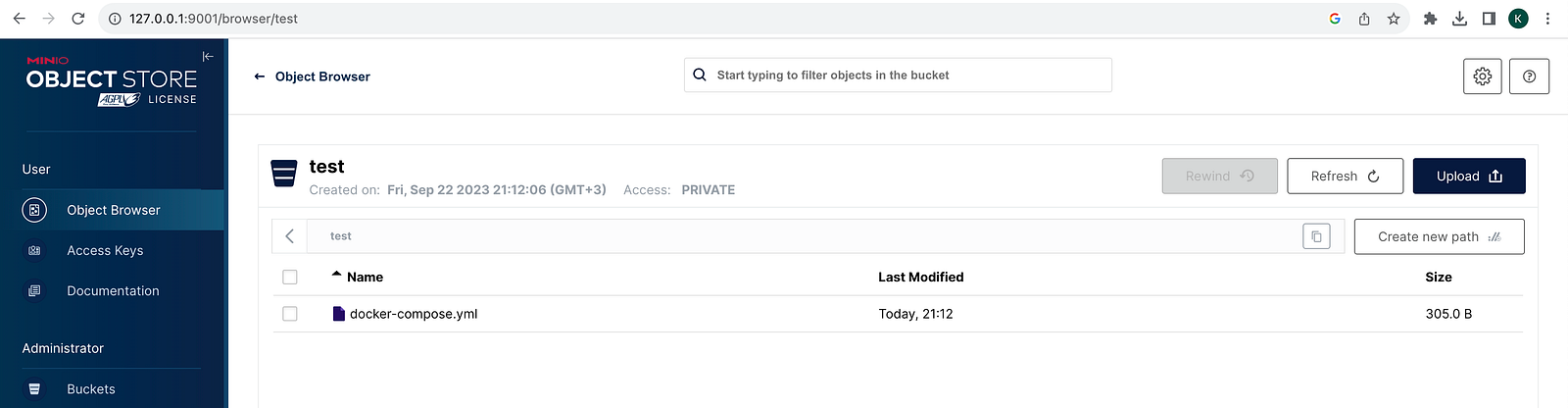
Minio comes with a WebUI for easy administration, to access the WebUI use the minio url with the minio WebUI port (9001), as user name and password use the MINIO_ROOT_USER and MINIO_ROOT_PASSWORD values you configured. If everything gone well you should be able to list and manage Buckets from the UI.
Conclusion
S3 is the most widely used object store! so having the capability to create your own S3 storage for either Testing or Production purposes is great and as we can see very easy to implement! i hope you enjoyed this article!
$ ls ./see-also/
$ ./buy-me-a-coffee ☕ // found this useful? I write these in my spare time