Docker: how to use the nginx web server.

Docker containers are like little virtual machines, but they contain only the running application and its dependencies and they run isolated from other containers and host processes, the main benefits of using docker are
- far less resources from a virtual machine because there is not need for operating system.
- easy to use new versions of software without the need to uninstall and install new software.
- application portability, you provide only the Dockerfile (a file with instructions of how docker will run) and the files that the application might need (html, database files, etc) and you have an exact replica of the application like in your environment.
In this example we will Dockerize nginx and some html files to test, nginx is a very popular web server. I assume that you already have installed docker.
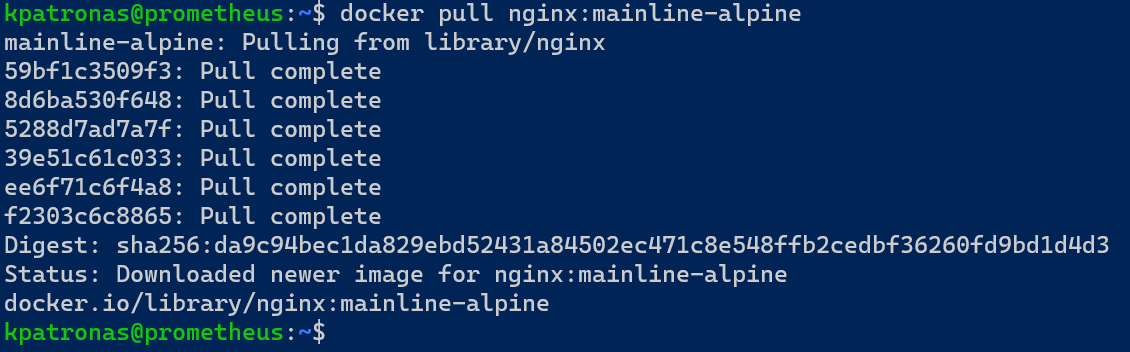
Get the nginx docker image$ docker pull nginx:mainline-alpine
The output should be something like this, indicating that the image has successfully downloaded to your computer.
Run the nginx container$ docker run -d --rm --name nginx01 -p 80:80 nginx:mainline-alpine
docker run: start a container.-d: run in the background.--rm: remove the container when it exits.--name: the name of the container-p 80:80: Map port 80 of the container to port 80 of the docker hostnginx:mainline-alpine: The docker image to use
Verify that the container started$ docker ps
Using docker ps we can get information about running containers, we can see that the container named nginx01 is up since 4 minutes.

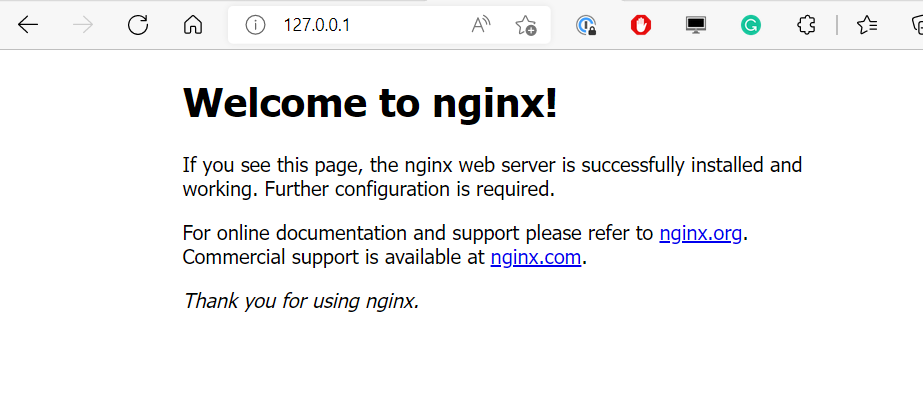
We can also point our browser to http://127.0.0.1:80 and you should get a welcome to nginx message!
For now we have managed to download and use the nginx image, but our container is not ready since we need to be able to access our custom html content.
Stop the running container
To stop the container enter$ docker stop nginx01
docker ps should not show any output

Configure the container to serve our html code
Create the following file and save it as index.html in directory ~/custom_html<html>
<head></head>
<body>
<h1>My Test</h1>
<p>Custom html code!</p>
</body>
</html>
Now that we have some html code to show lets modify the docker command$ docker run -d -v ~/custom_html/:/usr/share/nginx/html --rm --name nginx01 -p 80:80 nginx:mainline-alpine
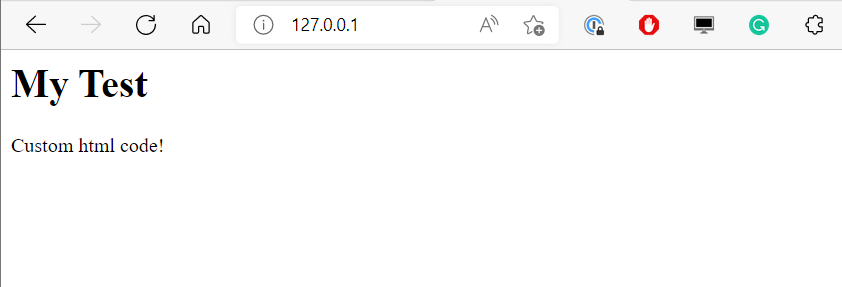
The command is almost the same except the -v parameter. -v mounts a local directory to a container directory making the data accessible to the container. This means that the container now can serve the index.html file. Browsing again to http://127.0.0.1:80 we can verify this.
I hope you found this article fun and easy to reproduce!
$ ls ./see-also/
$ ./buy-me-a-coffee ☕ // found this useful? I write these in my spare time