Flask, Redis and Nginx Dockerize them.
In this example we will see how you can use docker to containerize your Flask application, Redis server and Nginx.
Create files and directories
Create the following directories:mkdir -p ./flask_app/nginx
mkdir -p ./flask_app/flask
Create the following filestouch ./flask_app/docker-compose.yml
touch ./flask_app/nginx/nginx.conf
touch ./flask_app/flask/app.py
touch ./flask_app/flask/dockerfile
touch ./flask_app/flask/requirements.txt
Create the Flask application
Go to the flask directorycd ./flask_app/flask
Enter the following content in app.py and save the file
This is a flask REST api that allows you to insert/remove/update keys and values to a Redis database.
in line 49 the host option defines host ‘redis’ redis is not a real host but the hostname of the container that will run redis server.
Enter the following content in requirements.txt and save the file
This file will be used from python to install the needed libraries in the docker image with our Flask application.redis
flask
Enter the following content in dockerfile and save the file
This file will be used as instructions on how to build the Flask image, what libraries to install and with what command our Flask application will start.
- instruct docker to use image python:3.9
- create a directory named /code in the container and copy requirements.txt and app.py in.
- install requirements.txt libraries to the container.
- CMD command will instruct python to run app.py, our Flask applicationFROM python:3.9
WORKDIR /code
ADD . /code
RUN pip install -r requirements.txt
CMD python app.py
Create the Nginx configuration
Go to the nginx directorycd ../..
cd ./flask_app/nginx
Enter the following content in nginx.conf and save the file
This configuration instructs nginx to forward all incoming http requests to host app:5000, app is not a real host but is the container hostname that docker will create and will host our Flask app.worker_processes 1;
events { worker_connections 1024; }
http {
sendfile on;
upstream app_upstream {
server app:5000;
}
server {
listen 8080;location / {
proxy_pass http://app_upstream;
proxy_redirect off;
proxy_set_header Host $host;
proxy_set_header X-Real-IP $remote_addr;
proxy_set_header X-Forwarded-For $proxy_add_x_forwarded_for;
proxy_set_header X-Forwarded-Host $server_name;
}
}
}
Create the docker-compose file
The docker-compose file will used by Docker to do
- Port mapping of the nginx container port 8080 to the local host port 8080.
- Map the local directory nginx.conf to the container nginx.conf file.
- Build the Flask application using dockerfile in
- Finally will give names to the container in order to glue them together as hosts to the same network in order to communicate.
Go to docker-compose.yml file and enter the following contentversion: '2'
services:
web:
image: nginx
ports:
- "8080:8080"
volumes:
- ./nginx-config/nginx.conf:/etc/nginx/nginx.conf
app:
image: flask_app
build: ./flask/
depends_on:
- redis
- web
redis:
image: redis
You might wonder why we don't have define any port for redis, the reason is that redis is not needed to expose its ports to the host network, it only matters that redis port is available to the flask application which are by default since they are in the same network.
Build the Flask app
goto:cd ./flask_app/
Enterdocker-compose build
This will do a long output of the build procedure, if everything is ok will successfully build the flask appweb uses an image, skipping
redis uses an image, skipping
Building app
[+] Building 5.7s (10/10) FINISHED
=> [internal] load build definition from Dockerfile 0.0s
=> => transferring dockerfile: 139B 0.0s
=> [internal] load .dockerignore 0.0s
=> => transferring context: 2B 0.0s
=> [internal] load metadata for docker.io/library/python:3.9 5.4s
=> [auth] library/python:pull token for registry-1.docker.io 0.0s
=> [1/4] FROM docker.io/library/python:3.9@sha256:7b9a1abcbd8cf5949f750ac84b6afebb4689804a4db7fd55d0c263af7d94726b 0.0s
=> [internal] load build context 0.0s
=> => transferring context: 198B 0.0s
=> CACHED [2/4] WORKDIR /code 0.0s
=> CACHED [3/4] ADD . /code 0.0s
=> CACHED [4/4] RUN pip install -r requirements.txt 0.0s
=> exporting to image 0.0s
=> => exporting layers 0.0s
=> => writing image sha256:b219bb407332f644f92c0ba1407921cae72c791c4e336702aadd1855515c091e 0.0s
=> => naming to docker.io/kpatronas/flask01 0.0sUse 'docker scan' to run Snyk tests against images to find vulnerabilities and learn how to fix them
Now to run the dockerized environment, this will start our applicationdocker-compose up
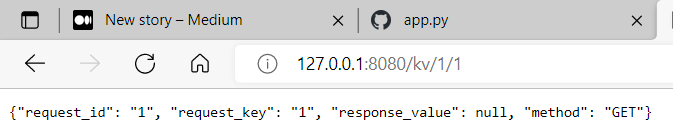
Verify that the app works by entering in a browser
http://127.0.0.1:8080/kv/1/1 it should return a json
To stop the app enterdocker-compose down
I hope you enjoyed this article :)
$ ls ./see-also/
$ ./buy-me-a-coffee ☕ // found this useful? I write these in my spare time