How to Generate a QR Code for Wi-Fi Connection from the Command Line
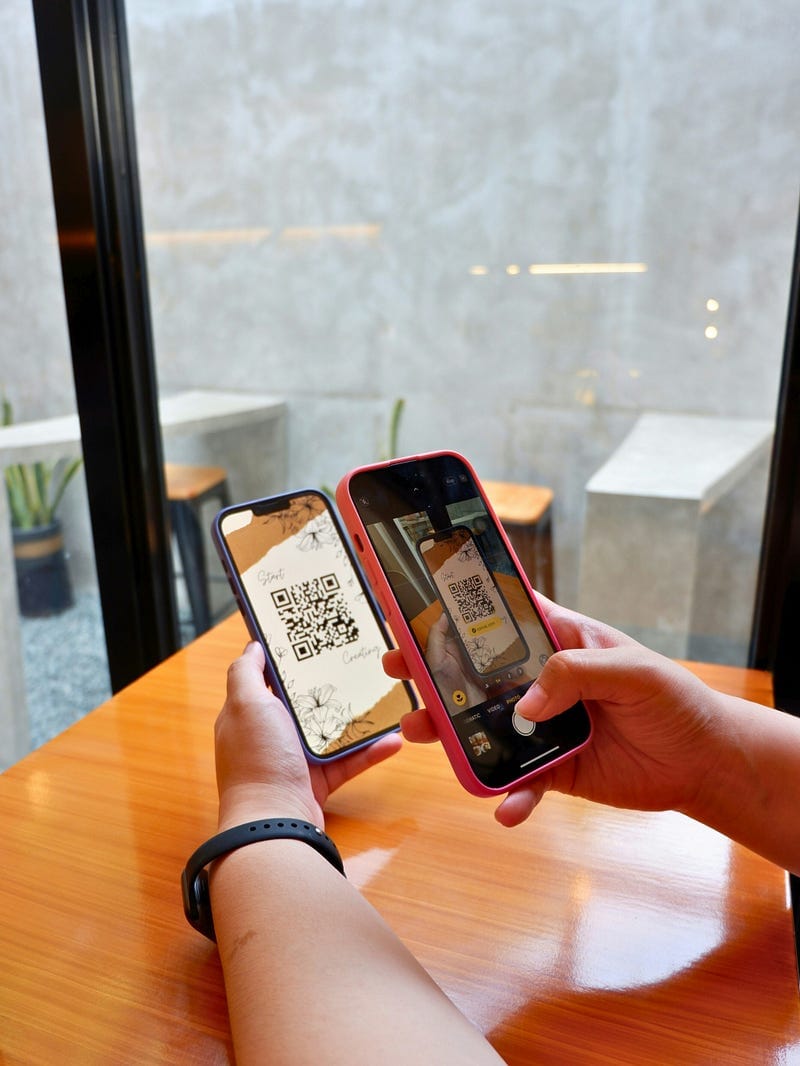
QR codes offer a quick and easy way to share Wi-Fi credentials. By generating a QR code, users can scan it with their smartphone or tablet and connect to your Wi-Fi network without typing the password. This is especially handy when sharing access in cafes, offices, or for guests at home.
In this guide, we’ll walk you through generating a QR code for a Wi-Fi network directly from the Linux command line using the qrencode tool. We'll also cover how to install it using different package managers, including brew for macOS and Linux.
Step 1: Install the qrencode Tool
The first step is to install qrencode, a command-line tool that generates QR codes. The installation process varies depending on your operating system.
Installing qrencode on Linux
Debian/Ubuntu-based distributions:
To install qrencode on Debian or Ubuntu, run the following command in your terminal:
sudo apt-get install qrencodeFedora-based distributions:
For Fedora users, install it by running:
sudo dnf install qrencodeArch Linux:
On Arch Linux, the installation command is:
sudo pacman -S qrencodeInstalling qrencode on macOS/Linux using Homebrew
Homebrew is a popular package manager for macOS and Linux. If you don’t have Homebrew installed, you can set it up by running this command:
/bin/bash -c "$(curl -fsSL https://raw.githubusercontent.com/Homebrew/install/HEAD/install.sh)"Once Homebrew is installed, install qrencode by running:
brew install qrencodeNow you’re ready to start generating Wi-Fi QR codes!
Step 2: Create a Wi-Fi QR Code
QR codes for Wi-Fi networks follow a specific format that includes the network’s SSID, encryption type, password, and an optional hidden network flag.
The format is:
WIFI:S:<SSID>;T:<encryption>;P:<password>;H:<hidden>;;Where:
S:is the Wi-Fi network name (SSID).T:is the encryption type (e.g., WPA, WPA2, ornopassfor open networks).P:is the Wi-Fi password.H:(optional) is set totrueif the network is hidden.
For example, if your network’s SSID is MyWiFiNetwork, the encryption type is WPA2, and the password is MyPassword123, the QR code data would look like this:
WIFI:S:MyWiFiNetwork;T:WPA;P:MyPassword123;;Generating the QR Code
To generate a QR code using qrencode, run the following command:
qrencode -o wifi-qr.png "WIFI:S:YourSSID;T:WPA;P:YourPassword;;"This command will generate a wifi-qr.png image file containing the QR code. Replace YourSSID with the name of your Wi-Fi network and YourPassword with your actual Wi-Fi password.
Example
For a Wi-Fi network with:
- SSID:
MyWiFiNetwork - Password:
MyPassword123 - Encryption: WPA2
Run:
qrencode -o wifi-qr.png "WIFI:S:MyWiFiNetwork;T:WPA;P:MyPassword123;;"This will create a PNG file named wifi-qr.png in your current directory. You can then share or print this QR code, and anyone with a QR code scanner on their device can quickly connect to your network.
Step 3: Display the QR Code in the Terminal
If you want to display the QR code directly in the terminal instead of generating a PNG image, you can use the -t flag with qrencode to output the code as text in the terminal.
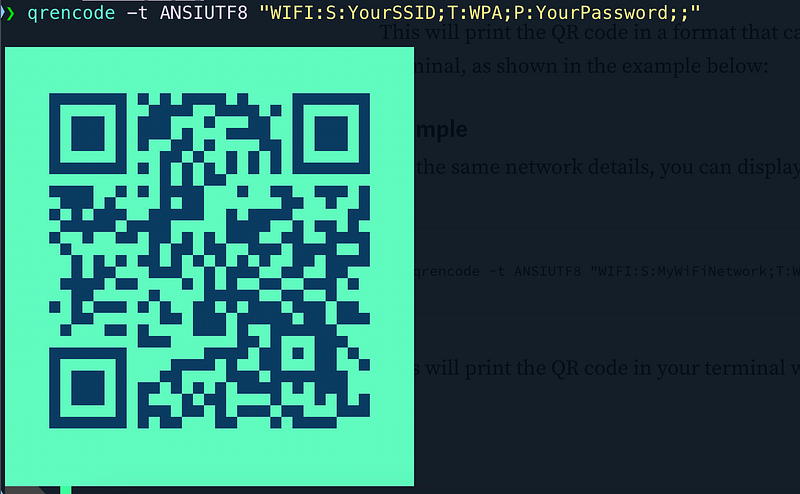
qrencode -t ANSIUTF8 "WIFI:S:YourSSID;T:WPA;P:YourPassword;;"This will print the QR code in a format that can be viewed directly in the terminal, as shown in the example below:
Example
For the same network details, you can display the QR code with:
qrencode -t ANSIUTF8 "WIFI:S:MyWiFiNetwork;T:WPA;P:MyPassword123;;"This will print the QR code in your terminal window:
Step 4: Scan the QR Code to Connect to Wi-Fi
Once the QR code is generated, you can scan it using any smartphone camera or QR code scanner app. On both Android and iOS devices, the default camera apps typically support QR code scanning, making it easy to connect to the Wi-Fi network without typing in credentials.
Bonus: Testing QR Code Generation
If you’d like to test the QR code before sharing it, you can open the PNG image using any image viewer on your computer or display it on your screen using a simple command:
xdg-open wifi-qr.png   # On Linux
open wifi-qr.png       # On macOS
Conclusion
Generating a QR code to connect to a Wi-Fi network using the qrencode command-line tool is a simple and effective solution. It eliminates the need to manually share and enter passwords, providing a seamless experience for your guests or clients. With just a few commands, you can create a QR code that can be scanned by smartphones and tablets to instantly connect to a Wi-Fi network.
Whether you’re on Linux or macOS, this guide helps you easily install qrencode and use it to create and display Wi-Fi QR codes.
$ ls ./see-also/
$ ./buy-me-a-coffee ☕ // found this useful? I write these in my spare time