How to record your terminal session and export it as animated GIF
In this article i will show you how you can record your terminal output and export it as an animated GIF, why to do that? there are multiple reasons! to create tutorials, or to share complicated terminal output where just pasting the output would not be enough!, lets see how it works
Installing Terminalizer
The application we will use to do this task is called terminalizer, its a node.js application, this means that we need to install node.js in our system if is not installed, on Mac to do this we use brew but would be somehow similar in ubuntu by using apt
$ brew install node.jsNext we need to install yarn , i dont know much about node.js but i think yarn is for node.js what pip is for Python!
$ brew install yarnFinnaly to install terminalizer we enter
$ yarn global add terminalizerRecording a terminal session
To record a terminal session is super easy! we need just to start terminalizer
$ terminalizer record <record_name>Lets start a recording and name it demo01, to exit terminalizer we need to press CTRL-D
$ terminalizer record demo01
The recording session is started
Press CTRL+D to exit and save the recording
Now we can start working on the commands that we want to record, like normally would do, in my case i just entered the ls -ltrh command, and then pressed CTRLD+D, terminalizer asked me if i would like to share my recording on their site.
ls -ltrh
total 8
drwxr-xr-x+ 4 kpatronas staff 128B Aug 12 2023 Public
drwx------+ 6 kpatronas staff 192B Oct 3 2023 Pictures
drwx------+ 5 kpatronas staff 160B Dec 1 2023 Music
drwx------ 5 kpatronas staff 160B May 5 17:15 Movies
drwx------@ 5 kpatronas staff 160B May 31 20:09 Applications
drwx------@ 109 kpatronas staff 3.4K Jun 23 17:11 Library
drwx------+ 4 kpatronas staff 128B Jul 5 21:12 Desktop
drwx------@ 15 kpatronas staff 480B Aug 24 20:49 Documents
drwx------@ 4 kpatronas staff 128B Aug 28 23:11 Downloads
drwxr-xr-x 5 kpatronas staff 160B Aug 28 23:11 go
-rw-r--r-- 1 kpatronas staff 2.4K Sep 2 02:08 config.yml
~ ✔ ╱ 02:08:36
Successfully Recorded
The recording data is saved into the file:
/Users/kpatronas/demo01.yml
You can edit the file and even change the configurations.
The command `terminalizer share`can be used anytime to share recordings!
? Would you like to share your recording on www.terminalizer.com? NoNow to export the recording to GIF we need to enter the following command
$ terminalizer render demo01
Rendering frame 17/17 100% [==============================] 0.0s
[render] Process successfully completed in 3102ms.
Merging frame 17/17 100% [==============================] 0.0s
[merge] Process successfully completed in 46651ms.

Successfully Rendered
The animated GIF image is saved into the file:
/Users/kpatronas/render1725232562902.gif
Inspecting the output
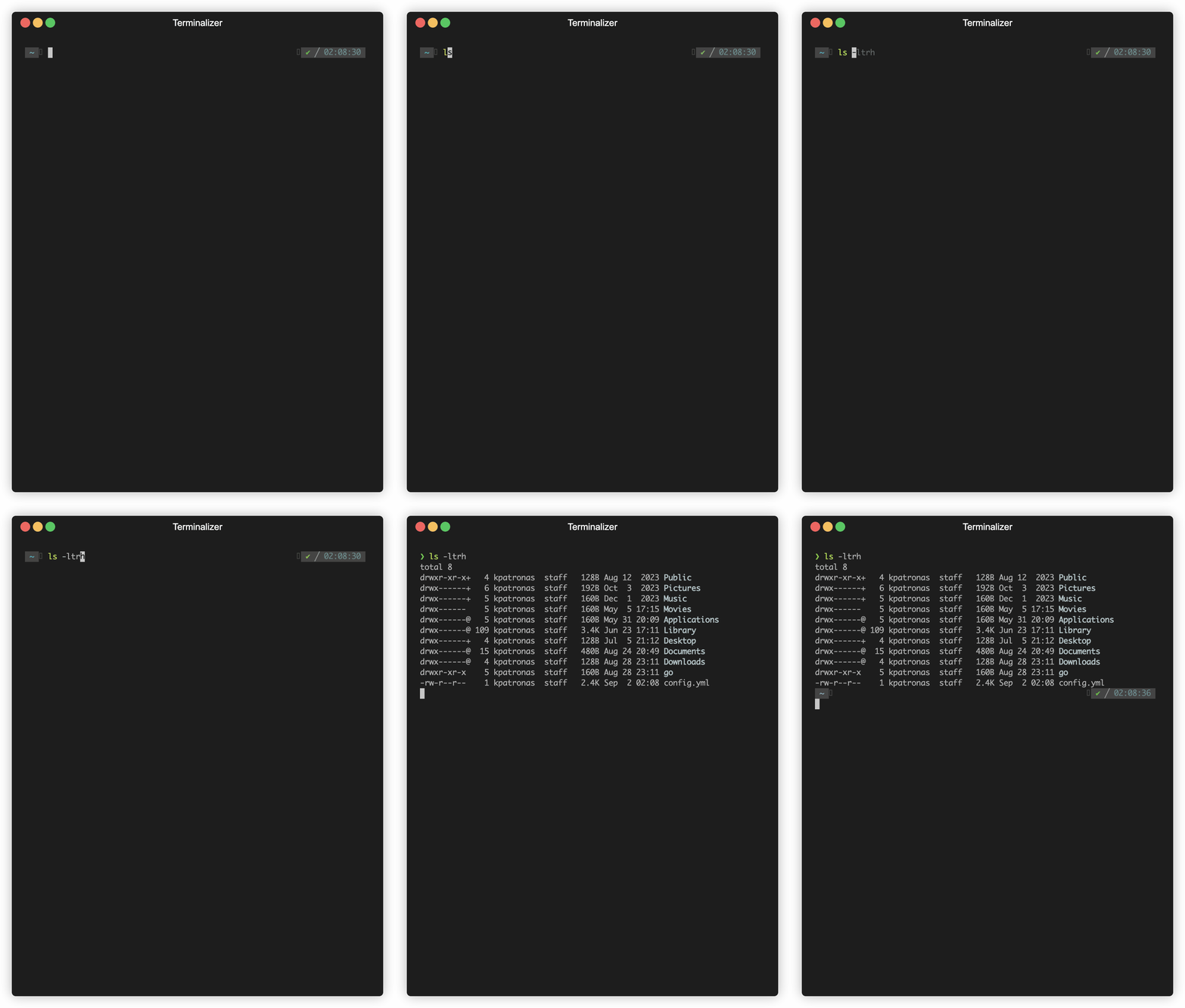
Opening the GIF from a web browser generated the following result! isnt that cool!? :)
Conclusion
Terminalizer can be used in cases you need to record the input and output of the terminal, this could be sharing a tutorial or command output that is very complex to just copy and paste! i hope you enjoyed this article!
$ ls ./see-also/
$ ./buy-me-a-coffee ☕ // found this useful? I write these in my spare time