Linux: Add File Icons to Your ls Command with colorls
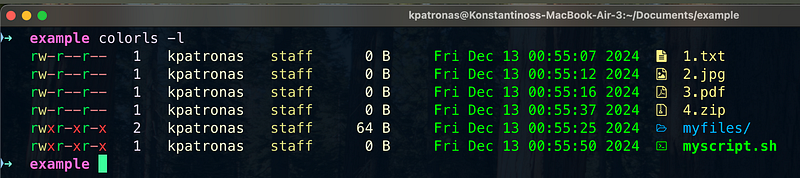
The command line is a developer’s trusty companion, but the default ls command can feel a bit drab with its plain output. Enter colorls, a Ruby gem that transforms the way you view your file system by adding colors, icons, and customizable options. This article will guide you through what colorls is, how to set it up, and ways to make the most of it.
What is colorls?
colorls is a Ruby gem that replaces the default ls command with a visually enhanced version. It uses colors and icons to differentiate between file types, making it easier to navigate and identify files in your directories. This tool is particularly handy for developers who want a more visually appealing and efficient command-line experience.
Key Features of colorls
- Color-Coded Output: File types are color-coded for better readability.
- File Icons: Icons appear next to file names, making it easier to identify directories, image files, scripts, and more.
- Customizable Configuration: Modify color schemes, icon sets, and behaviors using a configuration file.
- Tree View: Display your directory structure in a tree format with just one command.
- Sorting and Filtering: Easily sort files by size, time, or extension, and filter hidden files or specific file types.
Installing colorls
- Install Ruby: Ensure Ruby is installed on your system. Most Linux distributions come with Ruby pre-installed. If not, use your package manager to install it (e.g.,
sudo apt install rubyfor Ubuntu). - Install the
colorlsGem: Open your terminal and run:
gem install colorls3. Install Nerd Fonts: To display file icons correctly, install a Nerd Font. Download and install a font like Hack Nerd Font from Nerd Fonts.
Setting Up colorls
Create an Alias
To make it easier to use, you can create a short alias for the colorls command. Open your shell configuration file (e.g., ~/.bashrc or ~/.zshrc) and add the following line:
alias cls='colorls'Reload your shell configuration:
source ~/.bashrc # or ~/.zshrcNow, instead of typing colorls, you can use cls.
How to Use colorls
Here are some commonly used options for colorls:
- Basic Directory Listing:
colorlsDetailed Output: Similar to ls -l, this displays file permissions, sizes, and modification times:
colorls -lShow Hidden Files: Use the -a flag to include hidden files (similar to ls -a):
colorls -aTree View: Display the directory structure in a tree format:
colorls --treeSort by File Size: To sort files by size, use:
colorls --sdCustomizing colorls
colorls can be customized using a YAML configuration file. To locate the configuration file, run:
colorls --config-fileOpen this file in your favorite text editor and tweak it to match your preferences. You can change colors, icons, and file type associations.
Why Use colorls?
- Enhanced Readability: Quickly identify file types and important files.
- Visual Appeal: Makes working in the terminal more enjoyable.
- Increased Efficiency: Improved organization speeds up file navigation.
Uninstalling colorls
If you decide to remove colorls, you can uninstall it easily by running:
gem uninstall colorlsFinal Thoughts
colorls is a fantastic tool for anyone who spends a lot of time in the terminal. It turns mundane directory listings into a visually appealing experience while improving efficiency and readability. Whether you're a developer, system administrator, or casual terminal user, colorls is worth exploring.
Try it out today and bring some color to your command line!
$ ls ./see-also/
$ ./buy-me-a-coffee ☕ // found this useful? I write these in my spare time