Linux: how to delete a file only when is not used by any process
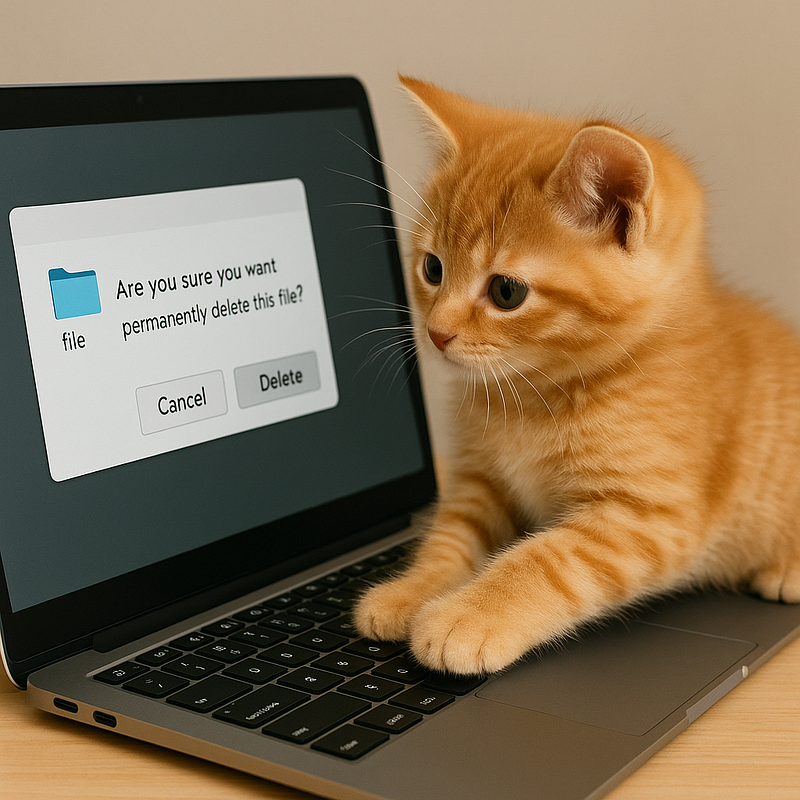
When working on Linux systems — whether servers in production, development machines, or even embedded devices — you’ll eventually run into a deceptively simple question:
How can I safely delete a file only when I’m sure no process is still using it?
At first glance, this sounds trivial. Just rm the file, right? But in real-world scenarios, deleting a file prematurely can lead to unexpected bugs, errors, or even service outages. In this article, I’ll explain why this problem matters, give practical examples, and show you how to do it safely.
Why Would You Care About Deleting Files Safely?
Let’s start by clarifying: Linux filesystems allow you to unlink (delete) a file while it’s open. This doesn’t stop existing processes from continuing to read or write it. The data stays alive on disk until all file handles are closed. That’s usually fine. But there are scenarios where you don’t want that:
- Log rotation: You want to delete or archive logs only when no process is writing to them.
- Large data files: Deleting huge files still held open by a process doesn’t reclaim disk space until they’re closed.
- Shared resources: Temporary files (e.g., Unix sockets or lock files) must be cleaned up only when unused.
- Configuration reloads: You don’t want to remove a config file still read by a long-running process.
- Security and compliance: Sensitive files must be securely wiped only when guaranteed no process has a handle.
These issues are especially common in production servers and automated cleanup scripts. Deleting carelessly can trigger cryptic errors such as:
Text file busy
Device or resource busy
or processes unexpectedly reverting to default behaviors.
How Can You Check if a File Is Used?
Linux provides tools to list open files. The most common is lsof:
lsof /path/to/your/fileIf this command shows no output, no process has the file open. That means it’s safe to delete.
For example:
$ lsof /tmp/bigdata.csv
COMMAND   PID USER   FD   TYPE DEVICE SIZE/OFF   NODE NAME
python3  2356 user1    4r   REG  253,0  1024000 525001 /tmp/bigdata.csv
Here, a Python process (PID 2356) is reading the file. Deleting it now won’t free disk space until that process exits or closes the handle.
A Simple Shell Script to Delete Only If Unused
Here’s a practical script you can drop into your toolbox:
#!/usr/bin/env bash

FILE="$1"

if [ -z "$FILE" ]; then
  echo "Usage: $0 <file>"
  exit 1
fi

if lsof -- "$FILE" >/dev/null; then
  echo "Cannot delete '$FILE': it is still in use."
  exit 2
else
  rm -- "$FILE"
  echo "Deleted '$FILE'."
fi
Save it as safe_rm.sh, chmod +x safe_rm.sh, and use it like:
./safe_rm.sh /path/to/your/fileTip: Always quote your filenames and use -- to protect against filenames starting with -.
Real-World Examples: Why This Is Useful
- Log File Cleanup
Imagine your application writes logs to/var/log/myapp.log. If you rotate or delete this file while the app is running, it may continue writing to the deleted inode, which is invisible tolsbut still consuming space. Usinglsofavoids this mess. - Large Downloads
A process downloads huge files to/tmp. If a cron job blindly deletes anything older than 1 hour, you can break partial downloads or leave ghost files eating disk space. - Unix Domain Sockets
If you remove a socket file (/tmp/myapp.sock) while the server is still running, clients will fail to connect, or the server may crash when it tries to bind again. - Lock Files
Many tools (databases, package managers) create lock files to prevent concurrent access. Deleting them prematurely risks corruption.
Additional Tools and Alternatives
Besides lsof, you can also:
- Use
fuser:
fuser /path/to/fileThis shows which PIDs are using the file.
- Combine with
findfor batch operations:
find /var/log -type f -name '*.log' -exec lsof {} \;- In more advanced scenarios, check
/proc/*/fdmanually (thoughlsofis simpler).
Conclusion
Blindly deleting files in Linux works most of the time — but the times it fails can cost you hours of troubleshooting. By checking whether files are still in use before removal, you can:
- Avoid disk space leaks
- Prevent errors and crashes
- Keep your cleanup scripts safe and predictable
Next time you need to clean up logs, caches, or temporary files, consider adding a quick lsof check. It’s a tiny step that saves big headaches.
$ ls ./see-also/
$ ./buy-me-a-coffee ☕ // found this useful? I write these in my spare time