Python and OpenCV how to read frames from a webcam or a video file
OpenCV stands for Open Computer Vision and is an open source computer vision library made by intel! in this short example i will show you how you can either read frames from webcam or from a video file!, Lets start!
Installing OpenCV
To install OpenCV in python you need to enter the following in a command prompt
pip install opencv-pythonHow to read a webcam stream
Create the following file as read_stream.py and mark it as executable using chmod +x ./read_stream.py , note this script assumes you have a webcam installed on your computer! else will fail!.
#!/usr/bin/env python3
import cv2

if __name__ == '__main__':

    cap = cv2.VideoCapture(0)

    while True:

        success, img = cap.read()

        if not success:
            break

        cv2.imshow("Webcam", img)
        cv2.waitKey(1)
To run the script enter
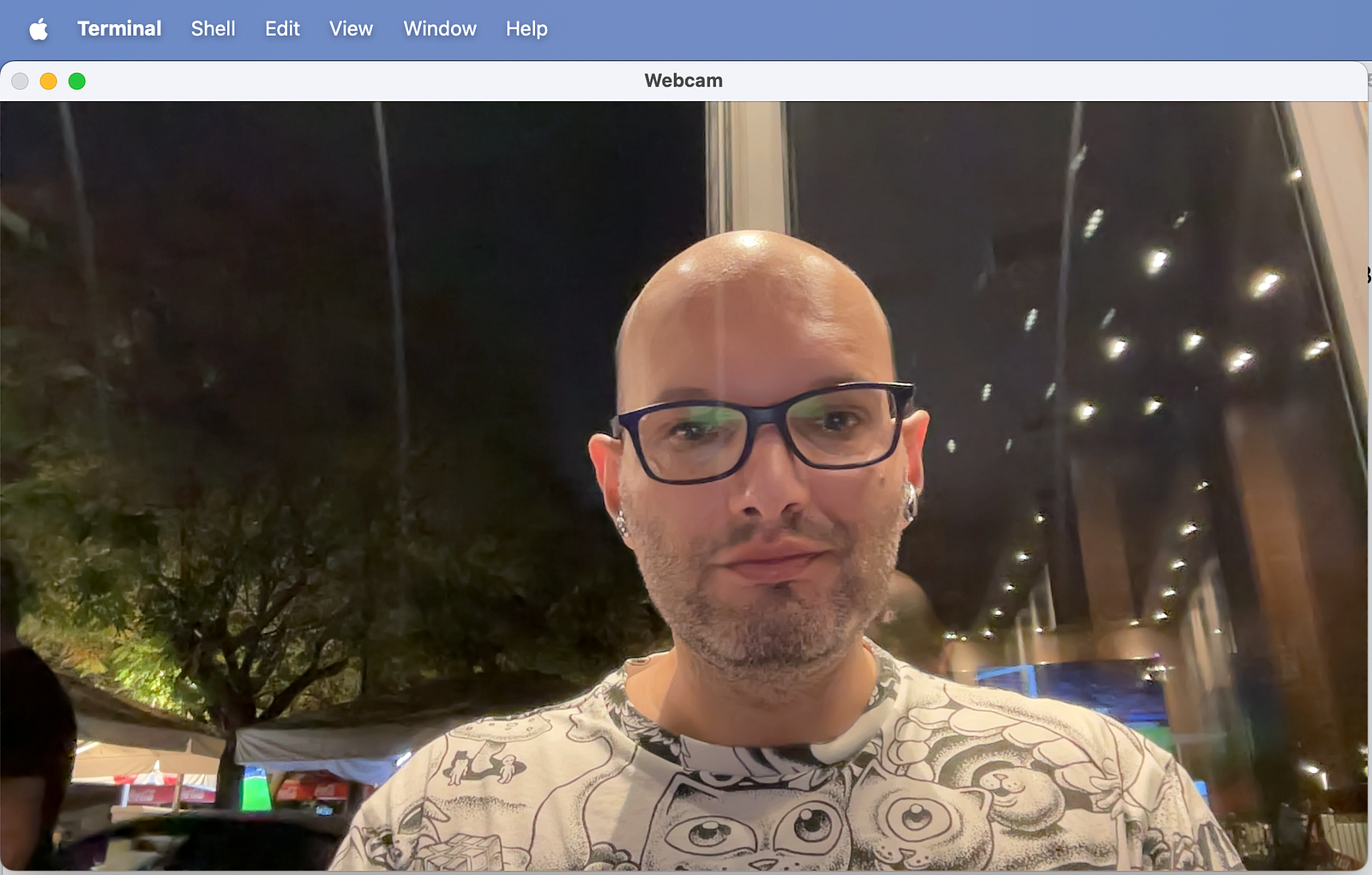
./read_stream.pyYou should a webcam stream window named “Webcam”
Explaining the code
This line imports the cv2 library
import cv2The following line creates a video stream that uses the webcam with ID 0 which is the first webcam of your system!
cap = cv2.VideoCapture(0)The next code parts create a loop that will read frames from the webcam until an error is occurred, if an error is occured will break the loop and the program will exit, else each frame will be show in a window named “Webcam” and will pause for 1ms between each frame using the cv2.waitKey(1) line
while True:
    success, img = cap.read()

    if not success:
        break

    cv2.imshow("Webcam", img)
    cv2.waitKey(1)
How to read a video file
To read a video file only a slight change is needed! to change the webcam id with the file name of the video!. In this case we replaced the webcam with ID 0 to a video file named "video.mp4"
#!/usr/bin/env python3
import cv2

if __name__ == '__main__':

    cap = cv2.VideoCapture("video.mp4")

    while True:

        success, img = cap.read()

        if not success:
            break

        cv2.imshow("Webcam", img)
        cv2.waitKey(1)
Easy! right? :)
A small but important improvement!
If you are in a Mac computer like me you might have notticed that you cannot close the window and the only way to exit the program is to CTRL+C in the terminal that the script runs!
CTraceback (most recent call last):
  File "/Users/kpatronas/Documents/python/./read_stream.py", line 16, in <module>
    cv2.waitKey(1)
    ^^^^^^^^^^^^^^
KeyboardInterrupt
Lets do a small improvement which will fix this!, Make changes to the code to match this
#!/usr/bin/env python3
import cv2

if __name__ == '__main__':

    cap = cv2.VideoCapture(0)

    while True:

        success, img = cap.read()

        if not success:
            break

        cv2.imshow("Webcam", img)

        if cv2.waitKey(1) & 0xFF == ord('q'):
            break

    cap.release()
    cv2.destroyAllWindows()
The cv2.waitKey(1) has been modified to break the loop if “q” button is pressent, Then outside the while loop the following two commands will “gently” close the stream and will destroy the window!
cap.release()
cv2.destroyAllWindows()
Conclusion
This article might not be something very exciting that will make you “Wow!” but this simple script is actually used in many computer vision projects since all projects need to read a video file or a web cam stream! i hope you enjoyed the article as much i enjoyed writing it!
$ ls ./see-also/
$ ./buy-me-a-coffee ☕ // found this useful? I write these in my spare time