Python: GUI programming with Tkinter
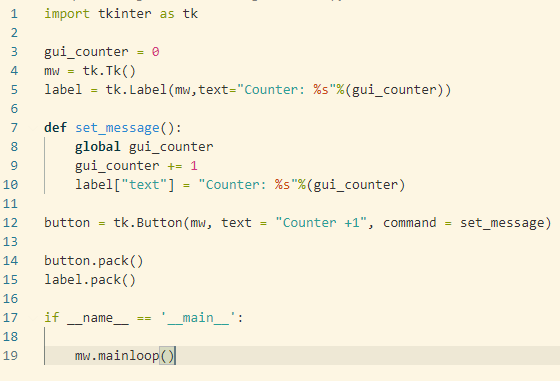
Tkinter is the Python standard library for GUI applications, Tk is a very good choice to create GUI apps for Python because:
- Tkinter created apps will run on every major Python implementation for Windows, MacOS and Linux
- There is no need to install external packages, is included with the Python standard library
- Its allready widely used, so you can find many examples of real life applications using Tk
Lets create the simplest Tk application we can
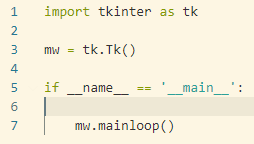
- Line 1: imports the tkinter library
- Line 3: Creates the main window tk object
- Line 7: Listens for events on the main window
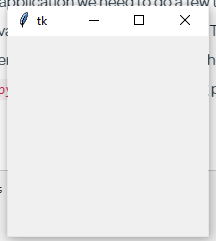
Running this will output an empty window with the standard window controls.
There is not much we can do with this app, but we can add functionallity using widgets, widgets are Tk objects that can be used to display or input something to our app. Do the following modifications
Running this will show the following window, the counter label will updated by adding one number on each button press.
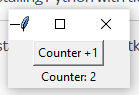
When program starts looks for events on the main window, in our case the only event that can be triggered is the button on line 12, on each button press the set_message function is being executed as defined.button = tk.Button(mw, text = "Counter +1", command = set_message)
Function: set_message()|7 | def set_message():
|8 | global gui_counter
|9 | gui_counter += 1
|10| label["text"] = "Counter: %s"%(gui_counter)
- Lines 14 and 15 are needed to inform main window that will use those widgets
- Lines 5 and 12 create the Label and the Button, the share the same properties, like the window that will be placed, the text to be shown but the Button label has an extra property, the function called when pressed
- Line 10 updates the label text property
Common widgets
- Buttons: Button, Checkbutton, Menubutton and Radiobutton
- Label: allows us to display static content like text or images
- Frame: groups other widgets
- Entry: a single line text entry field
- Menu: Group of drop menus
- LabelFrame: a frame with label
GUI Variables
- Tkinter uses special GUI variables to set or get values on the GUI which are mutable objects instead of Python variables which are immutable.
- There are observable by UI widgets
- Have default values when created
There are 4 variable object types we can usetkinter.StringVar (Defaults to: "" ) <-- Holds text
tkinter.IntVar (Defaults to: 0 ) <-- Holds Integers
tkinter.DoubleVar (Defaults to: 0.0) <-- Holds Decimals
tkinter.BoolVar (Defaults to: False) <-- Holds Bool
To set or get values of a variable we can use the set() and get() methodsimport tkinter as tkmw = tk.Tk()if __name__ == '__main__':a_var = tk.IntVar(mw)
# Get the value of the newly created a_var
print(a_var.get())
# Set the value of a_var to a decimal number
# Despite using and IntVar object
a_var.set(2.0)
# Get again the value
print(a_var.get())
- This program will print first “0” because IntVar default value is “0”
- Setting a_var to decimal number will automaticaly casted to an integer because it has created with the IntVar object0
2
We said that GUI variables are observable, this means that we can call functions when a variable is being set or get, in this example function var_read() will be executed when the a_var.get() function is called, the command that defines which function to be called when get() called is.trace("r",var_read)
Example:import tkinter as tkdef var_read(*args):
print("Reading value")mw = tk.Tk()if __name__ == '__main__':a_var = tk.IntVar(mw)
a_var.trace("r",var_read)
a_var_value = a_var.get()
print(a_var_value)
Output:Reading value
0
To execute a function on set() we can use the following.trace("w", a_function)
Lets see a more complete example
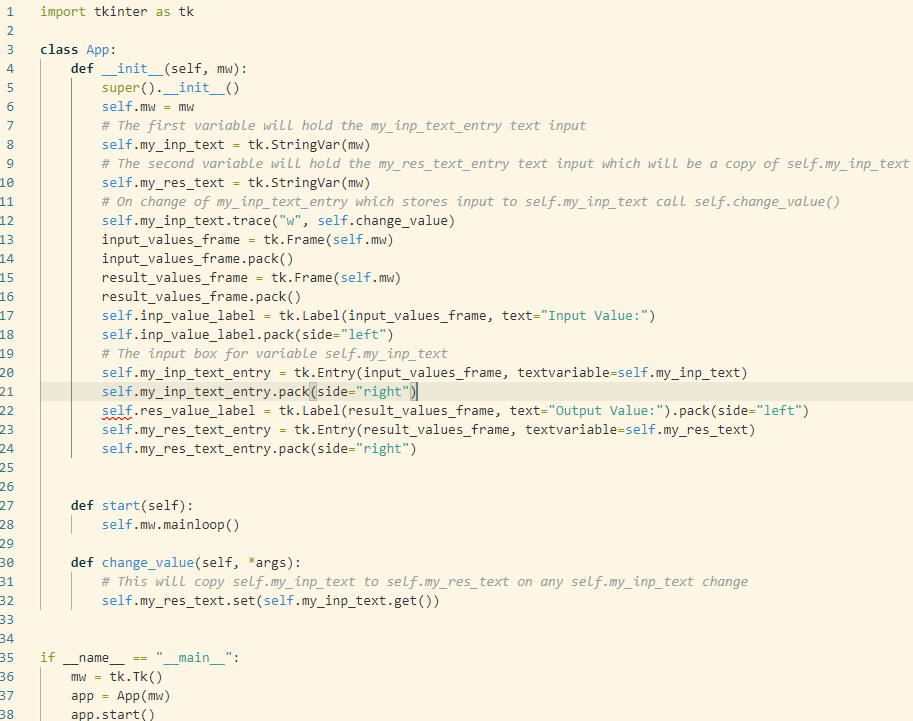
In this program the two text boxes values are mirrored from self.my_res_text for output box and self.my_inp_text for input box, any change to those variables will be displayed on the text boxes and any change to those text boxes will pushed back to the variables
self.my_res_text_entry = tk.Entry(result_values_frame, textvariable=self.my_res_text)self.my_inp_text_entry = tk.Entry(input_values_frame, textvariable=self.my_inp_text)
And any change to self.my_inp_text will trigger the self.change_value() functionself.my_inp_text.trace("w", self.change_value)
which sets self.my_res_text to the content of self.my_inp_textdef change_value(self, *args):
self.my_res_text.set(self.my_inp_text.get())
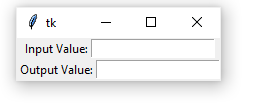
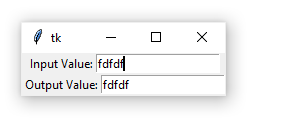
Running this program you will notice that any change to Input value is immedietly mirrored to output value but the opposite is not happening
Appart from this method of triggering actions there are simpler like the more traditional button press
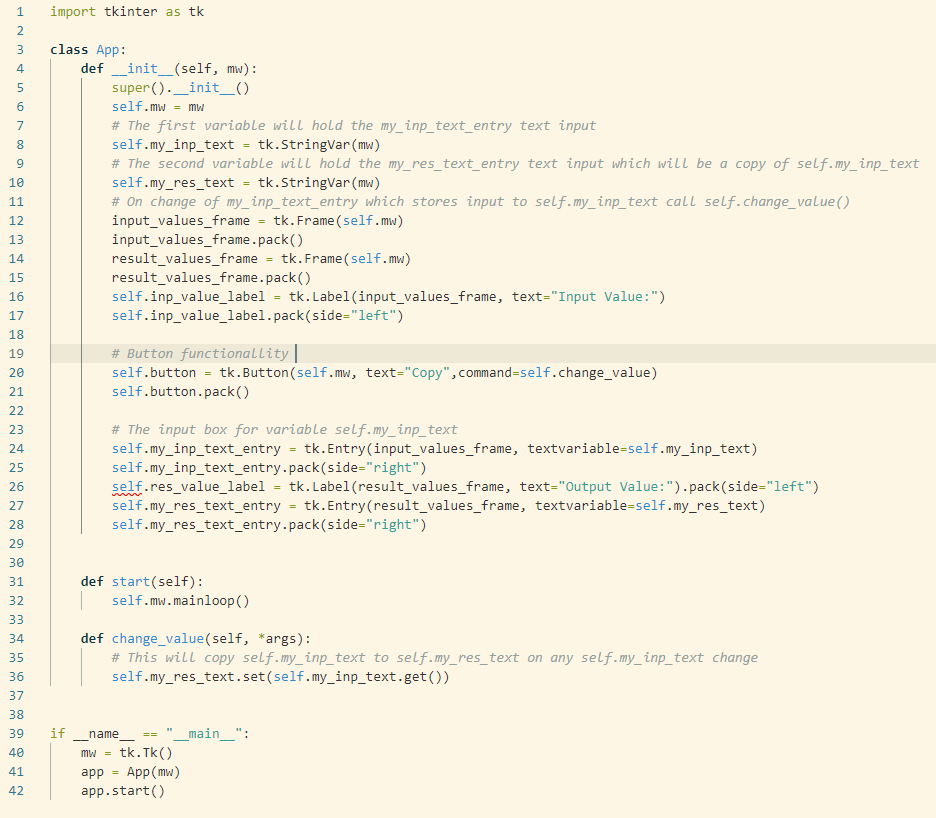
This code is much similiar to the previous but, the trace functionality is missing and a button is added (lines 20 and 21), on button press function self.change_value() will be executed
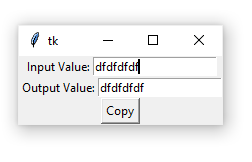
trace functionality of a variable is useful when we work with applications that we need an instant re-action on variable change, using traditional button is good for user triggered actions.
Handling events
tkinter events are events that a widget can be aware and trigger an action based on this, a classic example is a widget to handle different mouse buttonsimport tkinter as tkdef button_handler(event=None):
if event:
if event.__dict__['num'] == 1:
print("Left mouse button pressed")
if event.__dict__['num'] == 2:
print("Middle mouse button pressed")
if event.__dict__['num'] == 3:
print("Right mouse button pressed")app = tk.Tk()button = tk.Button(app,text="Click me")# Left mouse button handler
button.bind("<Button-1>",button_handler)# Middle mouse button handler
button.bind("<Button-2>",button_handler)# Right mouse button handler
button.bind("<Button-3>",button_handler)button.pack()
app.mainloop()
Running this will show the following very simple GUI
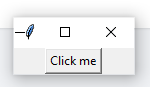
Try pressing the button with different mouse buttons you should see on your terminal / command line which button is pressed. we can identify which button pressed from the value ofevent.__dict__['num']
But we can also bind an event directly to a function like thisbutton.bind("<Button-3>",button_handler)
There are a lot of useful events from our widgets, you can find more in tkinter documentation
Message boxes
Tkinter can show message boxesfrom tkinter import *from tkinter import messageboxdef show_box():
messagebox.showinfo("showinfo", "Information")root = Tk()
root.geometry("300x200")w = Label(root, text ='Press The Button', font = "50")
w.pack()b = Button(root,text="BUTTON",command=show_box)
b.pack()root.mainloop()
This program will show the following GUI
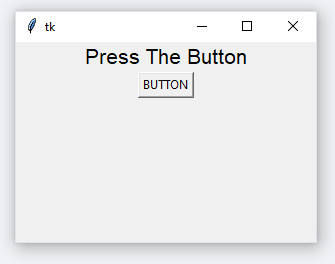
Pressing the button will execute function show_box() which will pop an informational message box
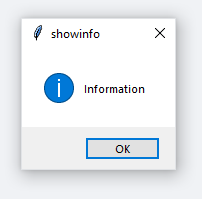
There are many types of message boxes that can be usedmessagebox.showinfo("showinfo", "Information")
messagebox.showwarning("showwarning", "Warning")
messagebox.showerror("showerror", "Error")
messagebox.askquestion("askquestion", "Are you sure?")
messagebox.askokcancel("askokcancel", "Want to continue?")
messagebox.askyesno("askyesno", "Find the value?")
messagebox.askretrycancel("askretrycancel", "Try again?")
I hope you found this short introduction to tkinter interesting :)
$ ls ./see-also/
$ ./buy-me-a-coffee ☕ // found this useful? I write these in my spare time