Mistakenly entered a command in terminal in Greek? Auto switch keyboard
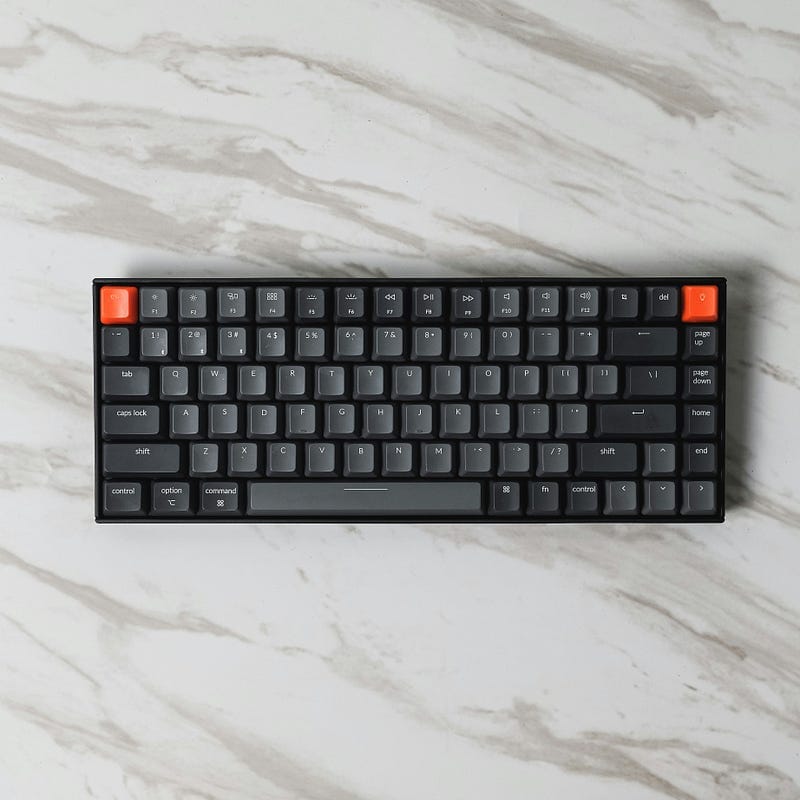
If you often type commands in Greek and English, you might have noticed a common annoyance: typing Greek letters by mistake in the terminal, which results in errors like λσ: command not found.
You can automate language switching in your macOS Terminal using a small Bash function and a utility called macism.
Step 1 — Install macism
macism is a command-line tool that lets you control the current macOS input source.
Install it via Homebrew:
brew tap laishulu/homebrew
brew install macism
You can test it by listing your available input sources:
macismTypical output:
com.apple.keylayout.ABC
com.apple.inputmethod.Greek
Step 2 — Add the Bash Hook
Place this function in your ~/.bashrc or ~/.bash_profile:
preexec() {
  local cmd="$1"
  local first_char="${cmd:0:1}"
  if [[ $first_char =~ [Α-Ωα-ω] ]]; then
    echo "Greek detected → switching to English"
    macism "com.apple.keylayout.ABC"
  fi
}
trap 'preexec "$BASH_COMMAND"' DEBUG
How It Works
trap 'preexec "$BASH_COMMAND"' DEBUGtriggers before every command execution.- The function checks the first character of the command.
- If it matches a Greek letter (
[Α-Ωα-ω]), it switches the input method to English (U.S.) usingmacism.
This ensures that every time you accidentally start typing a Greek command, your keyboard automatically flips back to English.
Optional — Customizing the Language Code
To switch to a different layout, run macism without parameters and note the identifier. Replace "com.apple.keylayout.ABC" with your preferred layout ID.
Example Run
λσ
Greek detected → switching to English
bash: λσ: command not found
Afterward, your keyboard switches back to English automatically — so your next command will execute correctly.
$ ls ./see-also/
$ ./buy-me-a-coffee ☕ // found this useful? I write these in my spare time